Texture, Washes, or Lines
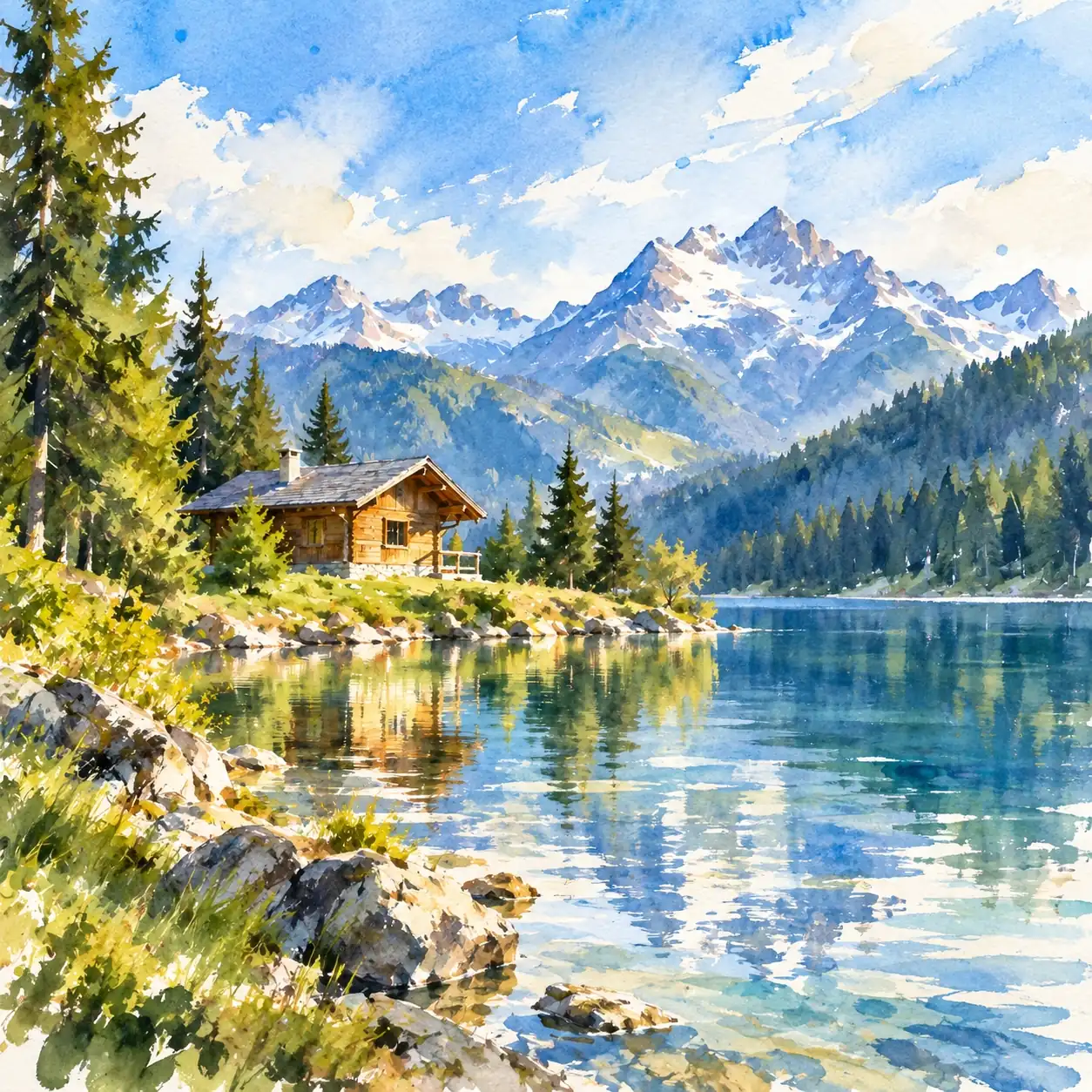
Choose oil painting for a brushwork-led look, watercolor for washes of color, or line drawing for an emphasis on shape. Each medium offers a different way to interpret the same subject.
A favorite photo can suggest more than one direction. Start with the part you want the artwork to emphasize.
Choose oil painting for a brushwork-led look, watercolor for washes of color, or line drawing for an emphasis on shape. Each medium offers a different way to interpret the same subject.
Try a refined treatment when small features matter. Explore a looser or more expressive style when mood matters more than photographic detail.
Consider whether color tells the story of your photo. A colorful treatment may emphasize light and atmosphere; a reduced palette may draw attention to silhouettes and contrast.
Decide how much the setting matters. A simpler look may reduce background detail, while a more descriptive treatment may suit a scene where the location is part of the story.
Explore the other available looks, including paper art and illustration. These may suit a graphic interpretation when you want to move beyond a painted surface.
Think about where the result will appear. A small profile image may benefit from simple shapes; a larger digital layout gives finer marks more room to be seen.
Choose a clear image with the subject visible, then select an output aspect ratio that suits the photo and your intended use.
Select a style, check the cost shown on Generate, and sign in to create your image. You do not need to write a prompt.
Check the subject, background, and crop in the result. Download the version you want to keep.
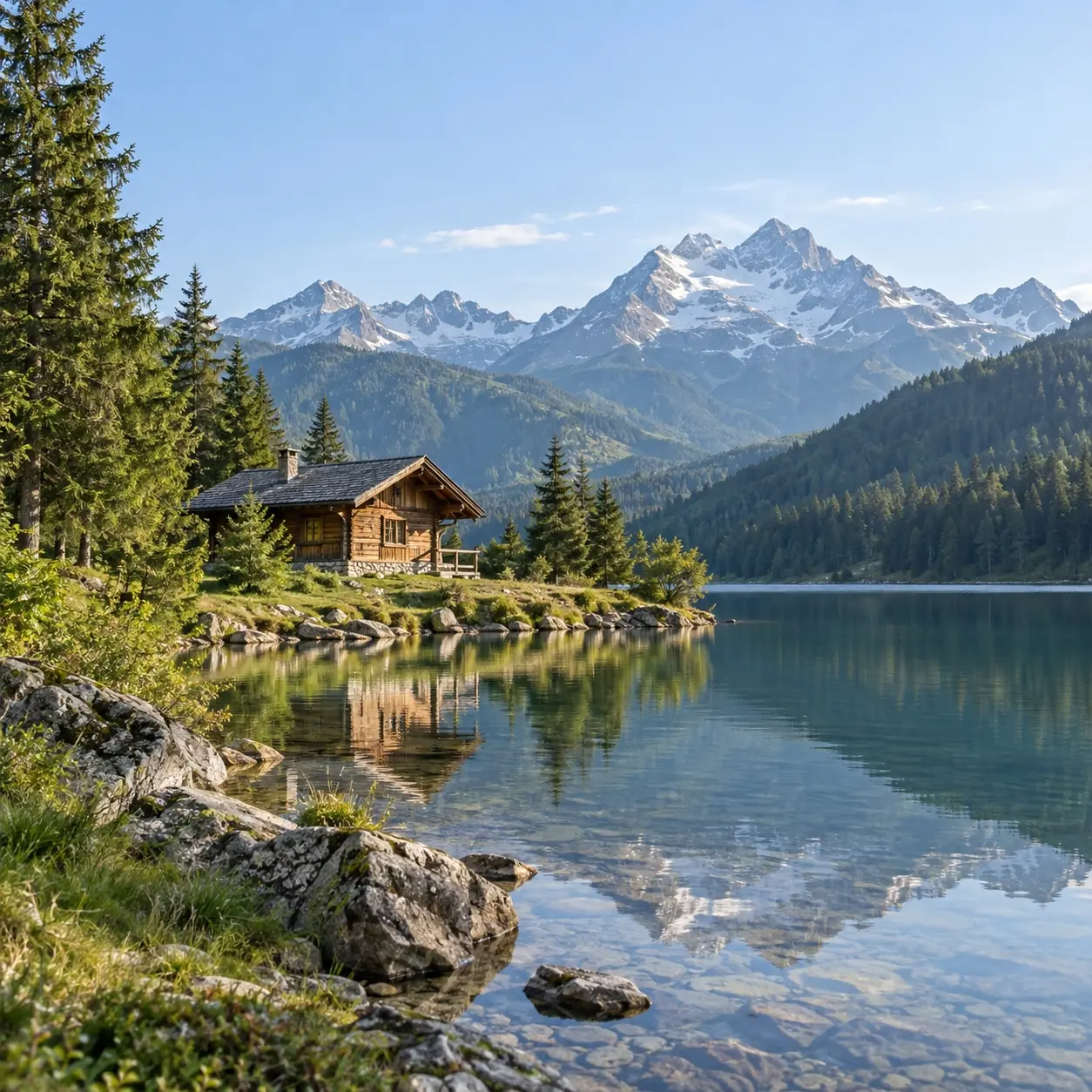
Use the same original photo and output ratio for each comparison, so a different crop does not distract from the style itself.
If the first result feels too busy, try a simpler look. If it feels too restrained, try a more expressive one. Each new generation uses credits.
Look at the versions at the same size. Pick the one whose balance of likeness and artistic interpretation suits your project.
Choosing a style, preparing a photo, and understanding the result.
You can use complimentary credits if your account has enough to cover the generation cost. Check your balance and Pricing first: complimentary credits are not guaranteed, and conversions are not unlimited.
The best choice depends on the styles you want, how the tool treats your subject, and its cost. PhotoToPainting runs in your browser without an app installation. Compare tools using the same source photo rather than relying on their sample galleries alone.
Yes. AI can use a photograph as a reference for a digital painting-style image. It can reinterpret colors, shading, and shapes, so the result may differ from the original in both small details and larger forms.
A conventional filter changes the appearance of existing pixels; a generative tool can also reinterpret shapes and details. Some tools called filters use AI, so the names overlap. Judge the output by its brushwork, subject likeness, and background changes.
You can consider the downloaded image for a separate canvas-printing service. Ask the printer whether its pixel dimensions suit your intended size, and allow for any wrapped edges. PhotoToPainting creates a digital image, not a physical canvas or a hand-painted commission.
Start with a clear, well-lit photo and a recognizable focal point. Try a portrait, pet, landscape, or still life. Avoid cropped-off features or blur that hides what you want to keep, and inspect the generated interpretation for important details.
You can choose from multiple output aspect ratios. Select one that suits your photo and intended use, then check the framing and composition of the generated image.
Sign in when you are ready to generate. PhotoToPainting uses credits, and the Generate button shows an estimated cost. Check Pricing for available plans.
Start with the image you care about, then explore which style tells its story best.